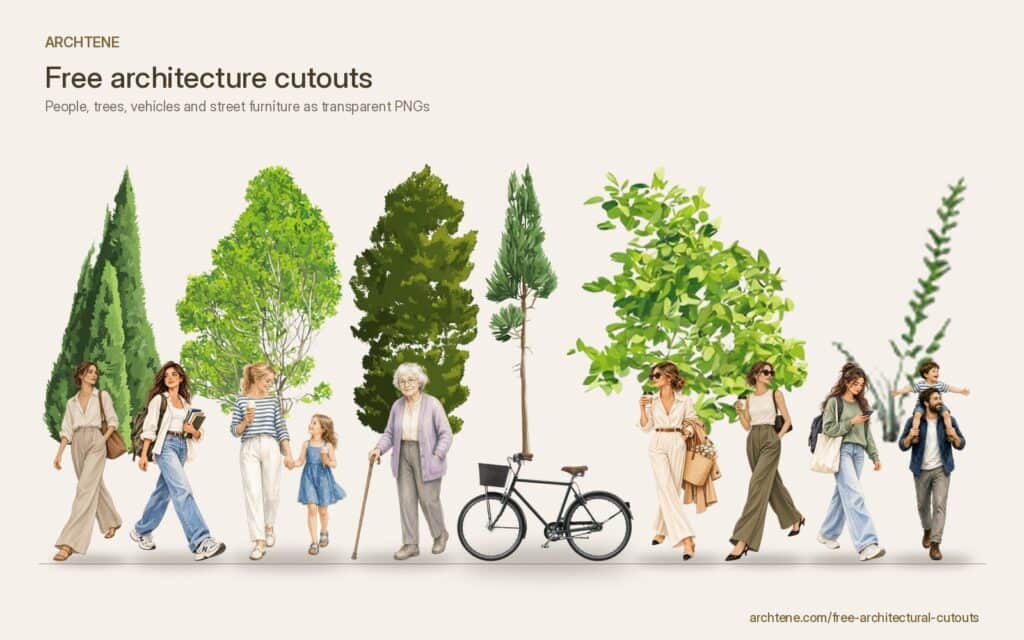
A good cutout can make a render feel lived in. A badly placed one is the quickest way to make it look fake. This guide covers both parts of the job: where to find free architecture cutouts worth using, and how to place them so they sit in your scene at the right scale, in the right perspective, with believable shadows and matching colour.
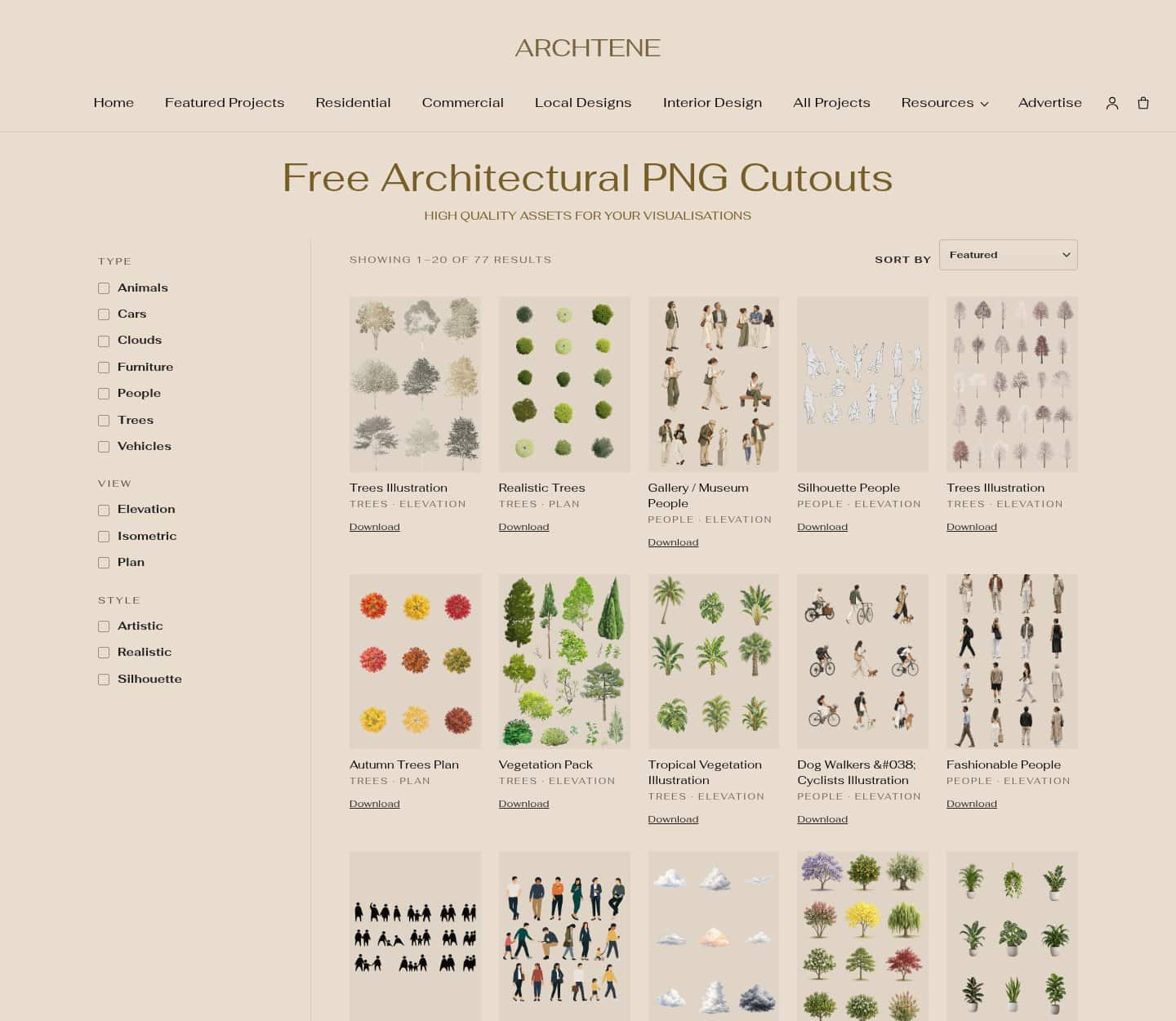
If you just want to start collecting, the Archtene cutout library has free PNG people, trees, vehicles and furniture sorted by type and style. It is a good starting point, but everything below works with cutouts from any source.
What are architecture cutouts?
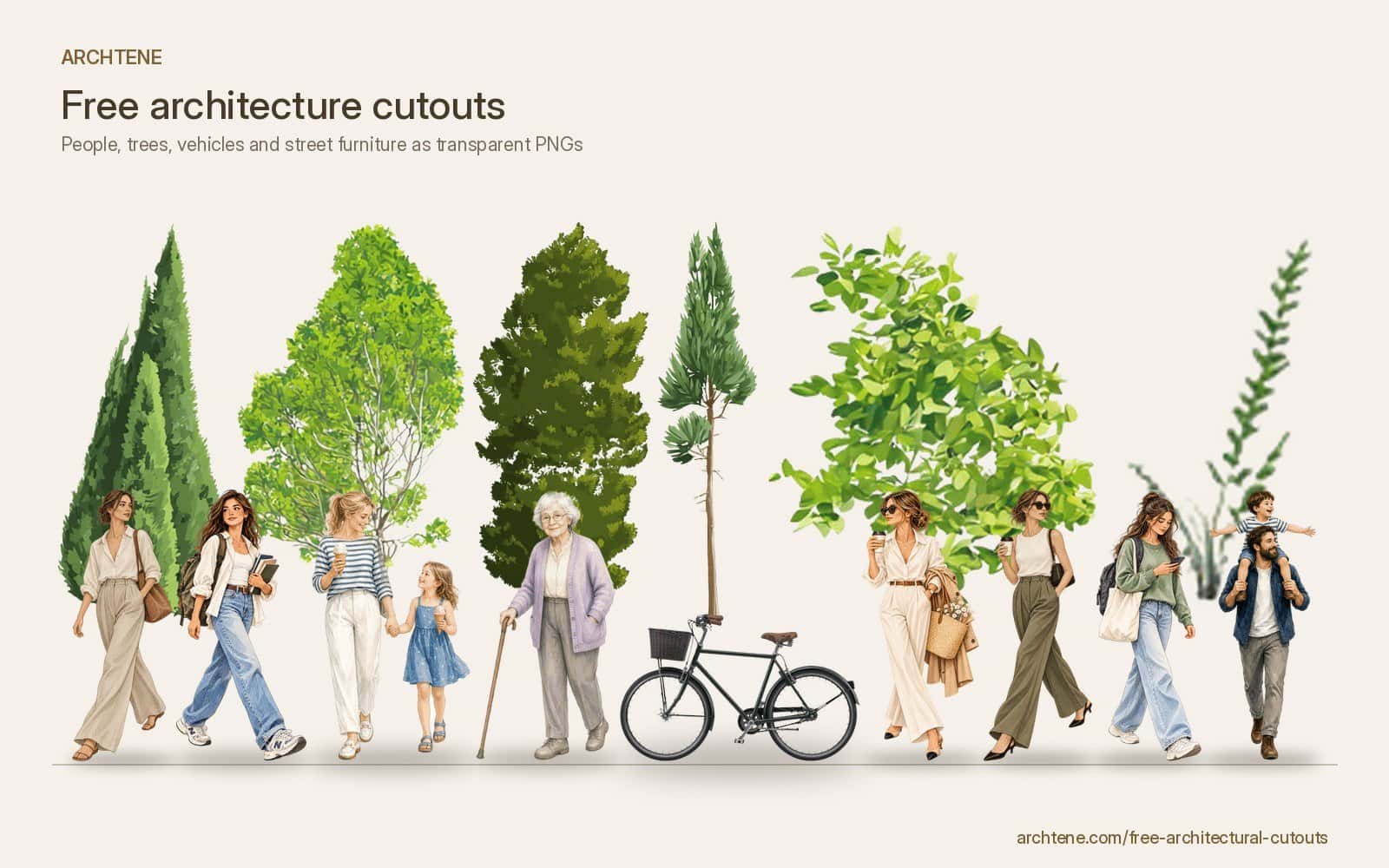
Architecture cutouts are images of people, plants, vehicles, furniture and other entourage with the background removed, usually saved as transparent PNG files. You layer them over a render, model view or collage to show scale, suggest how a space is used and add life. In architecture school they are often called entourage.
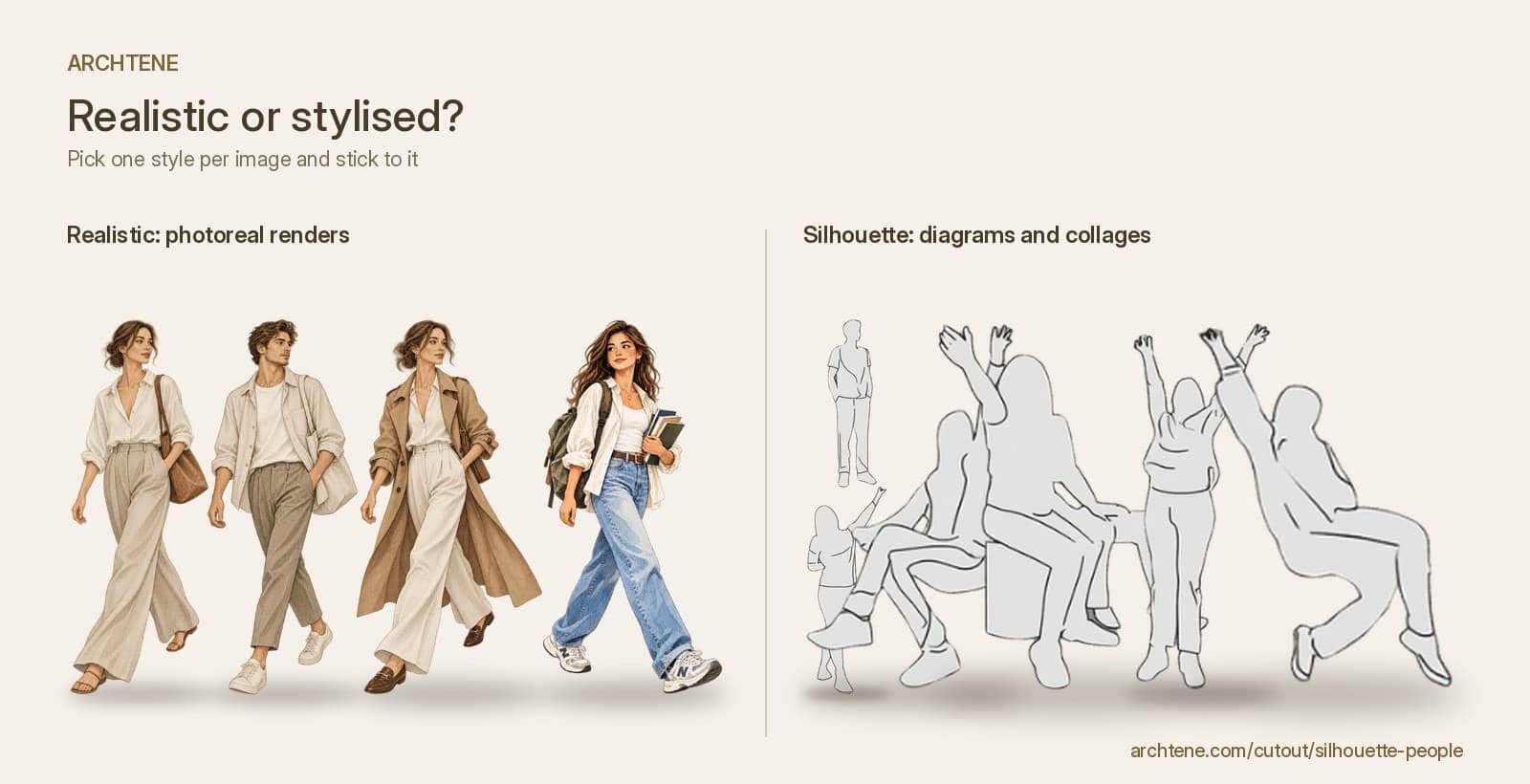
They come in two broad families. Realistic cutouts are photographic and suit photoreal renders. Stylised cutouts (silhouettes, flat illustrations, line figures) suit diagrams, collages and competition boards where you want the architecture, not the people, to carry the image.
Where can you get free architecture cutouts?
Look for three things in any source: a clean edge (no white halo), a decent resolution (at least 1,500 px tall for a foreground figure) and a clear licence that allows use in student and portfolio work.
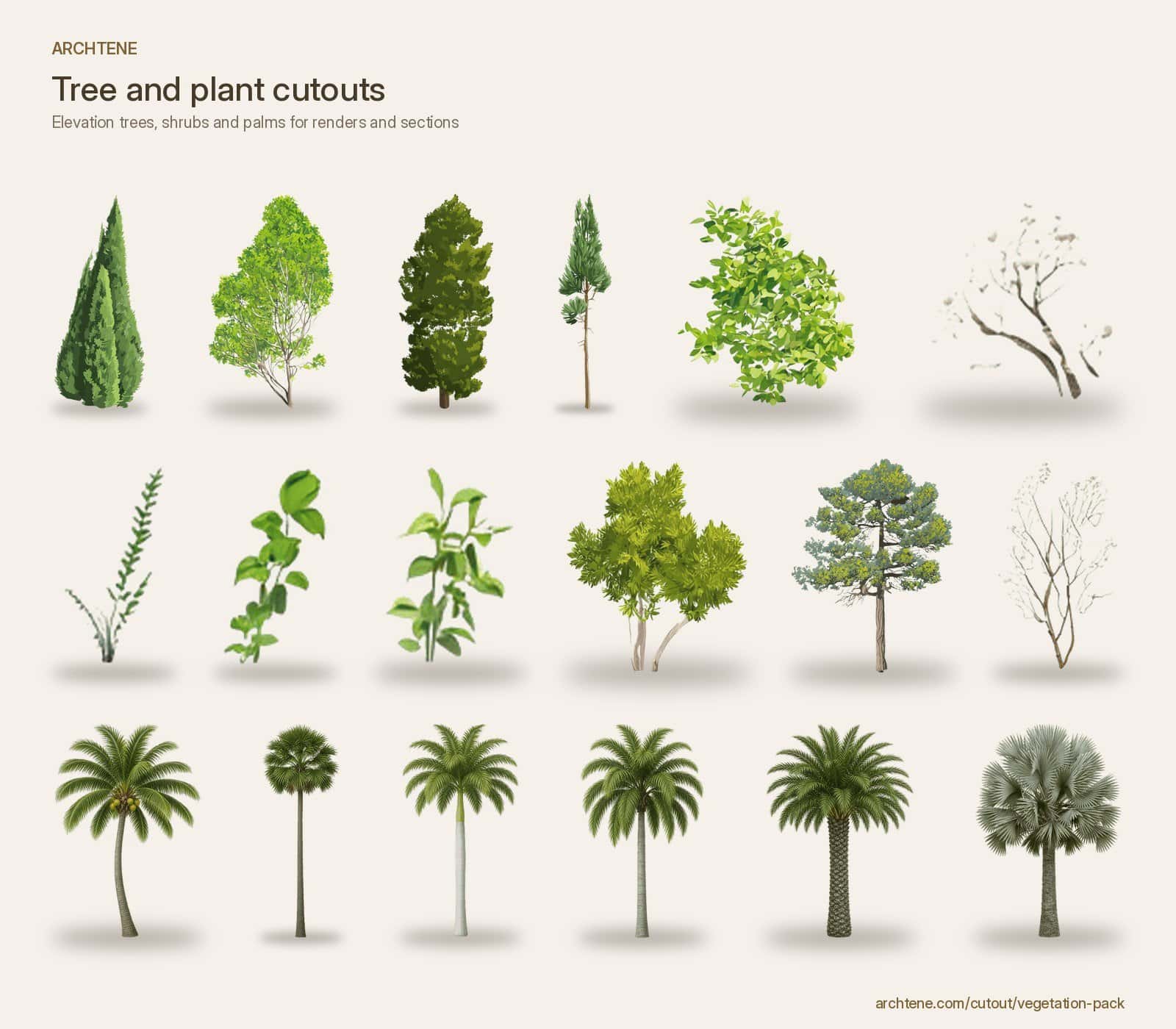
- Archtene cutout library. The free architectural cutouts page groups packs by use, so you can grab a consistent set rather than mixing random figures. Useful starting packs include people pack, realistic trees, street furniture and bicycles and e-scooters.
- Skalgubbar and similar figure collections. Long-running collections of everyday people photographed in public, popular for their natural, unposed look.
- Public domain and Creative Commons archives. Museum archives and Wikimedia Commons are good for historic figures, vintage vehicles and botanical illustrations. Check the licence on each file.
- Your own photos. Photographing people on site (from behind or at a distance) and masking them yourself gives you figures lit and dressed for your exact context.
- Paid marketplaces. Worth it later for very large, consistent packs, but rarely needed for student work.
Whatever the source, keep a folder system by category (people standing, people seated, trees, vehicles) and by lighting direction. You will work much faster if you can find a left-lit seated couple in seconds.
Which cutouts should you choose for your render?
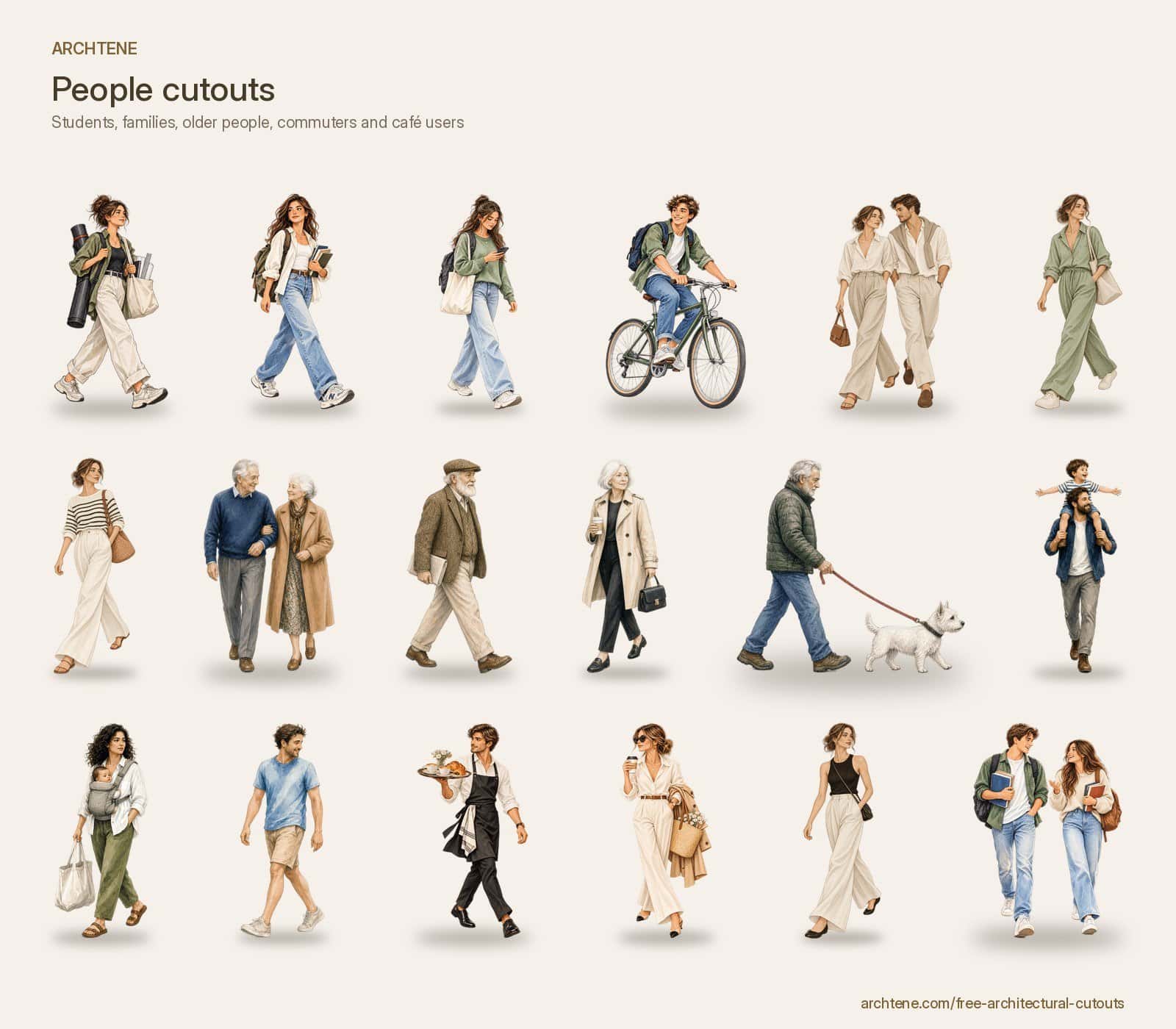
Choose cutouts that tell the story of the building, not just fill space. A library wants people reading, a campus building wants students on campus, a café frontage wants café terrace people. Matching activity to programme is one of the easiest ways to make a render read as believable.
- Match the style. Do not mix photoreal people with flat vector trees unless the contrast is deliberate. For collage boards, packs such as people silhouettes or vintage people illustration keep a consistent graphic language.
- Match the climate and season. Winter clothing people and autumn trees next to a summer sky look wrong. For Australian and tropical sites, palm trees or tropical vegetation suit better than European deciduous trees.
- Represent real users. Include a mix of ages and abilities. Packs such as families with children, elderly people and people in wheelchairs help show that a space is designed for everyone.
- Avoid famous faces. Celebrity cutouts distract from the design and look like a joke on a crit wall. Keep people anonymous.
How do you get the scale of a cutout right?
Scale is the most common mistake, and the easiest to fix. Use something in the render with a known size as a reference: a door (about 2,040 mm in Australia), a standard balustrade (1,000 mm) or a stair riser (about 175 mm).
- Draw a guide at the height of a known object at the depth where the figure will stand.
- Scale an adult figure to about 1,700 mm against that reference. Children, seated people and cyclists need their own heights (a seated adult is roughly 1,300 mm to the top of the head).
- Always scale with the transform tool constrained (hold Shift in older versions of Photoshop) so you never stretch a person.
- Check trees too. A young street tree might be 5 to 7 m tall; a mature eucalypt can be 20 m or more. Giant trees next to a small house make the building look like a model.

How do you match a cutout to the perspective of the render?
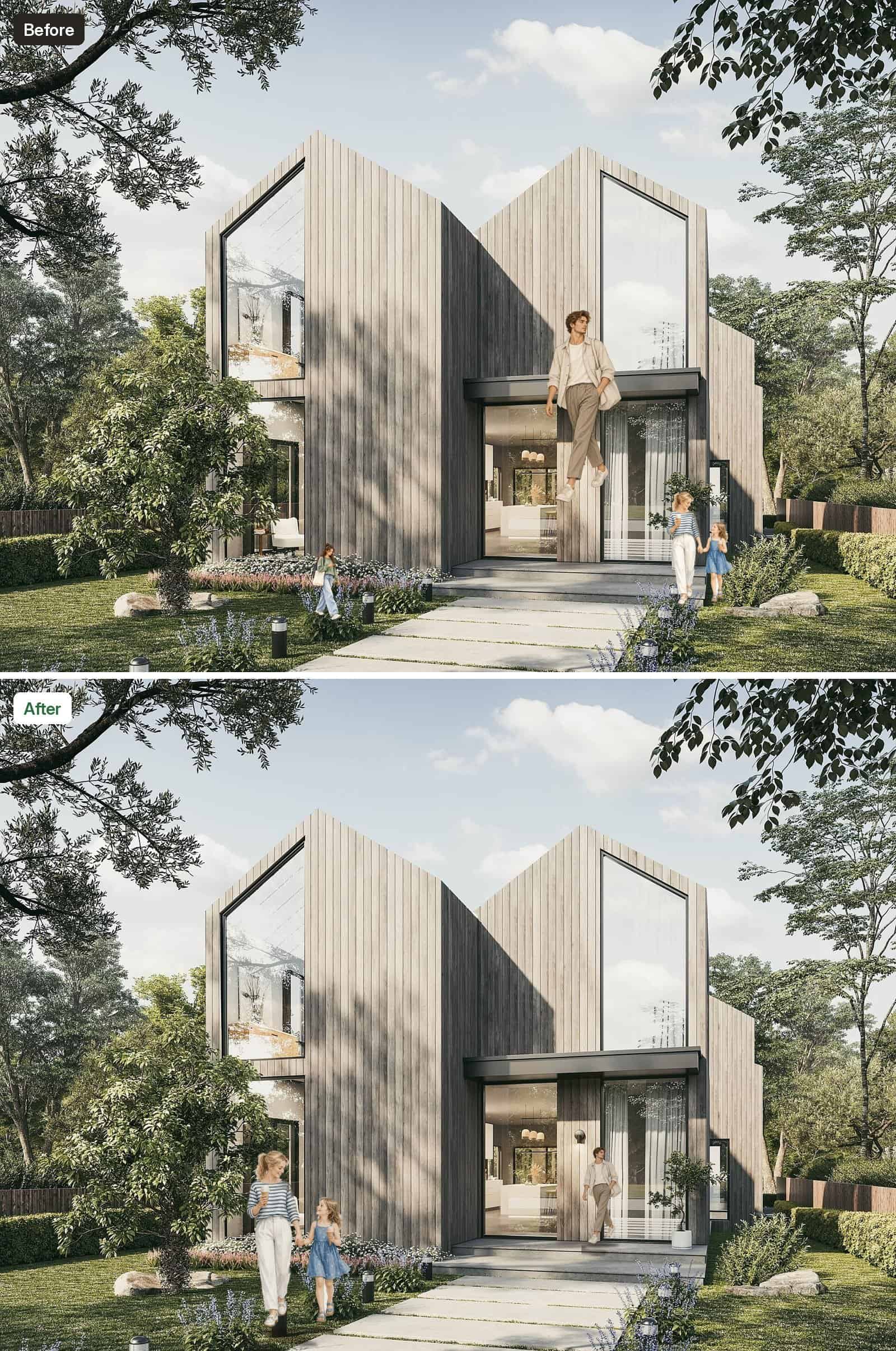
In a normal eye-level render, the horizon line sits at about 1,600 mm above the ground, which is the eye height of a standing adult. That gives you a simple rule: on flat ground, the eyes of every standing adult sit on the horizon line, whether they are near or far. Their feet move up the image as they move away.
- Find the horizon by extending two parallel edges of the building (eaves, paving joints) until they meet. Draw a horizontal guide through that point.
- Place each standing figure so its eye line touches the horizon guide, then scale it until its feet land on the ground where you want it.
- Check the camera angle of the cutout. A person photographed from above will look like they are floating in an eye-level view. Pick figures shot at roughly the same height as your camera.
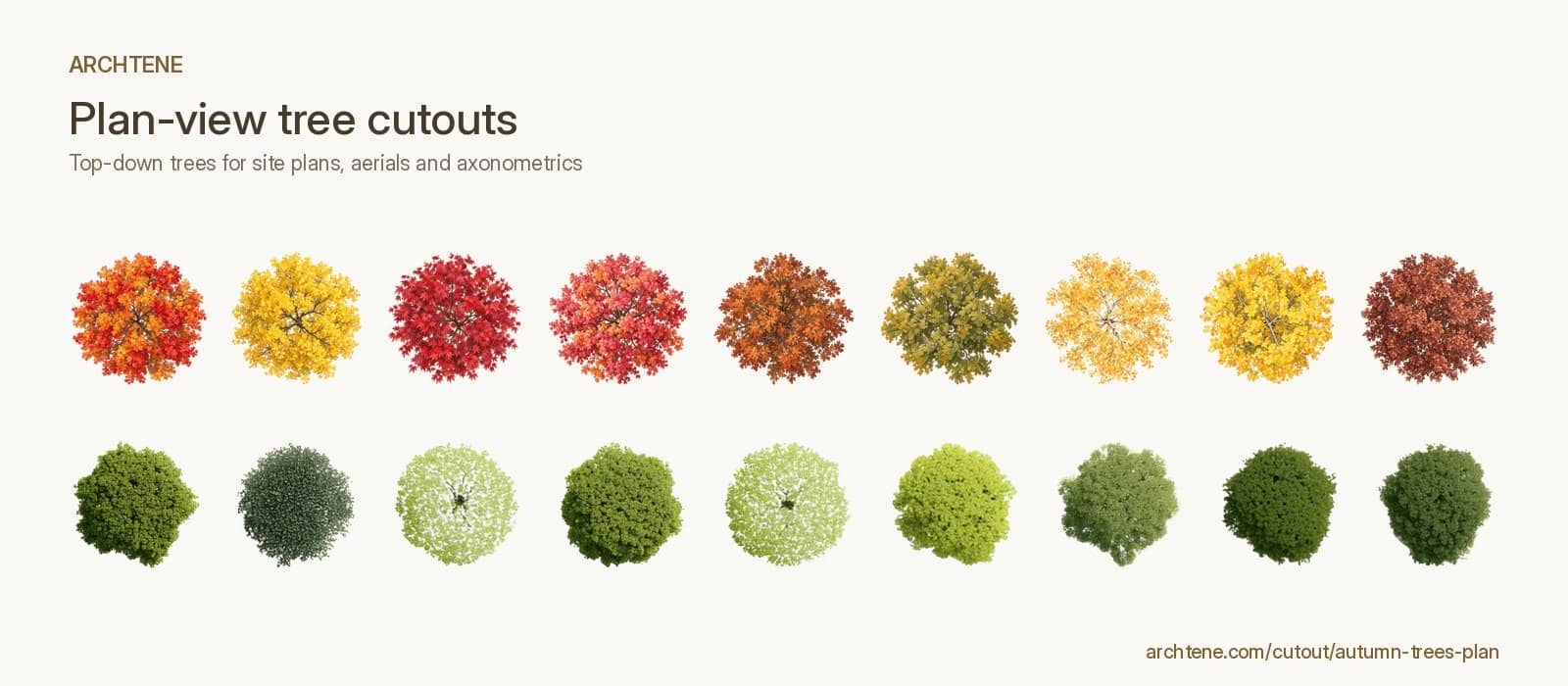
- For aerial views or upper-floor views, use figures shot from above, or simple top-down plan cutouts such as autumn trees in plan.

How do you add realistic shadows to cutouts in Photoshop?
A figure without a shadow floats. You need two shadows: a soft contact shadow right under the feet and a cast shadow that follows the sun direction in your render. For a deeper look at how light shapes buildings, see our guide to shadows in architecture.
- Duplicate the cutout layer, fill it with black (lock transparency, then Edit > Fill) and place it below the figure.
- Use Edit > Transform > Distort to lay the shadow flat on the ground, pointing away from the light. Match the length and angle of the shadows your building already casts.
- Set the layer to Multiply, lower opacity to about 40 to 70 per cent, and add a gradient mask so it fades with distance from the feet.
- Add a small blurred dark ellipse right under the feet for contact. This single step fixes most floating figures.
- For overcast or interior scenes, skip the long cast shadow and keep only a very soft contact shadow.
Trees need shadows too. A soft dappled shadow from a realistic tree falling across a facade or path is one of the best ways to tie vegetation to the building.
How do you blend cutouts so they do not look pasted on?
- Remove halos. Use Layer > Matting > Defringe (1 to 2 px) or a slight Layer Mask contraction to kill white edges.
- Match sharpness. Distant figures should be softer than close ones. Add a touch of Gaussian blur (0.3 to 1 px) to anything in the background.
- Add atmosphere. Place a light haze layer in front of distant figures so they fade into the scene, the same way the building does.
- Overlap. Let figures pass behind columns, planters or benches and bollards. Overlapping objects create depth instantly.
- Avoid spotlight figures. Do not put a person in every gap. Group people naturally, in twos and threes, walking with purpose.

How do you colour match cutouts to the render?
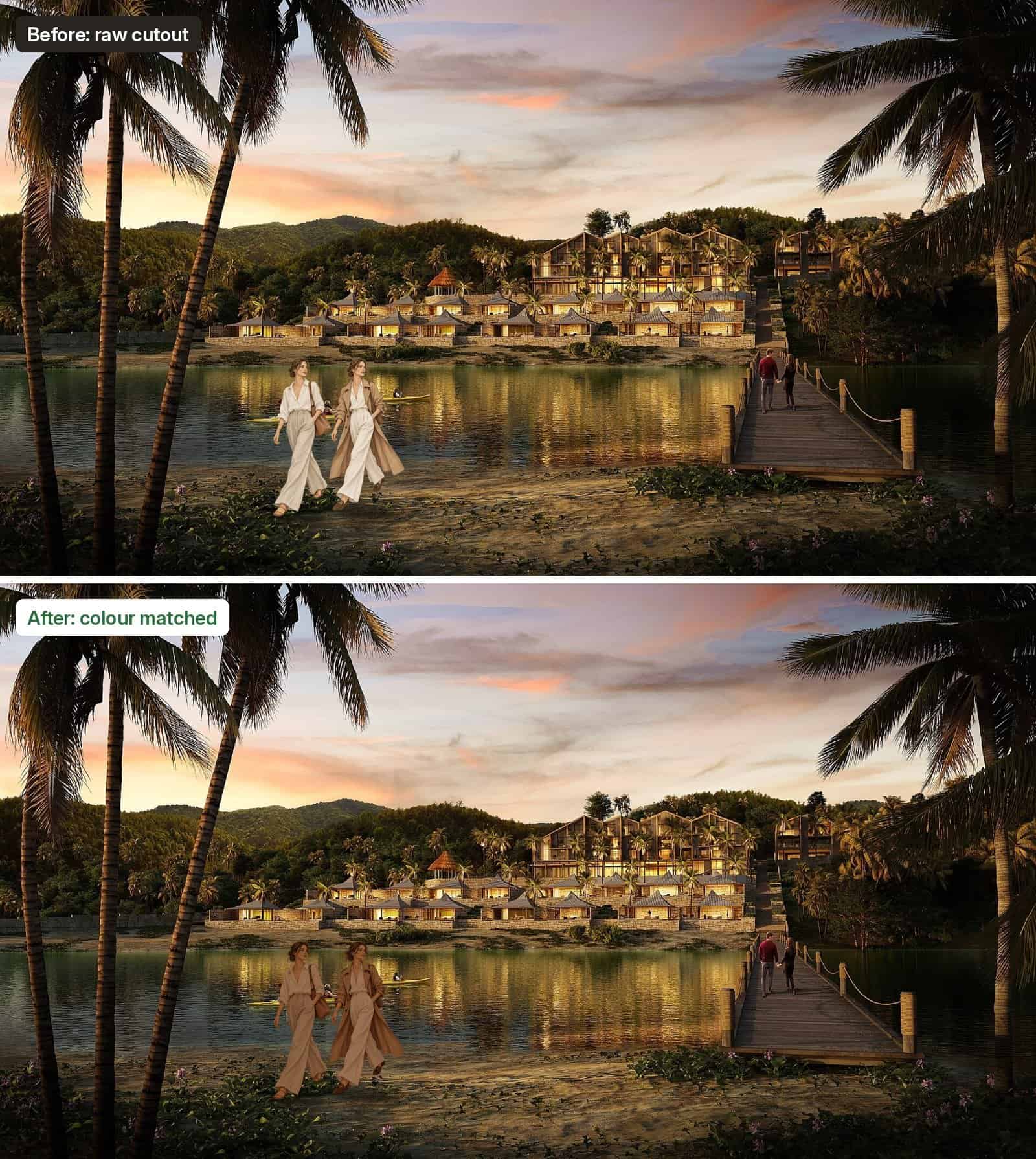
Even a perfectly scaled figure will look fake if it is lit by a different sky. Colour matching is about three things: brightness, contrast and colour temperature.
- Clip a Curves adjustment layer to the cutout (Alt-click between layers) and match its darkest and lightest values to nearby objects in the render.
- Clip a Colour Balance or Photo Filter layer to warm figures in a golden hour scene or cool them in a blue dusk scene.
- Use Image > Adjustments > Match Colour on the figure, with the render as the source, as a quick first pass, then reduce the effect.
- Paint a soft rim of light on the side facing the sun with a low-opacity brush on a clipped Overlay layer.
- Finish with one adjustment layer (for example a gentle Curves or Colour Lookup) over the whole image. A shared grade pulls the render and every cutout into the same world.
How do you use vehicle cutouts in architectural renders?
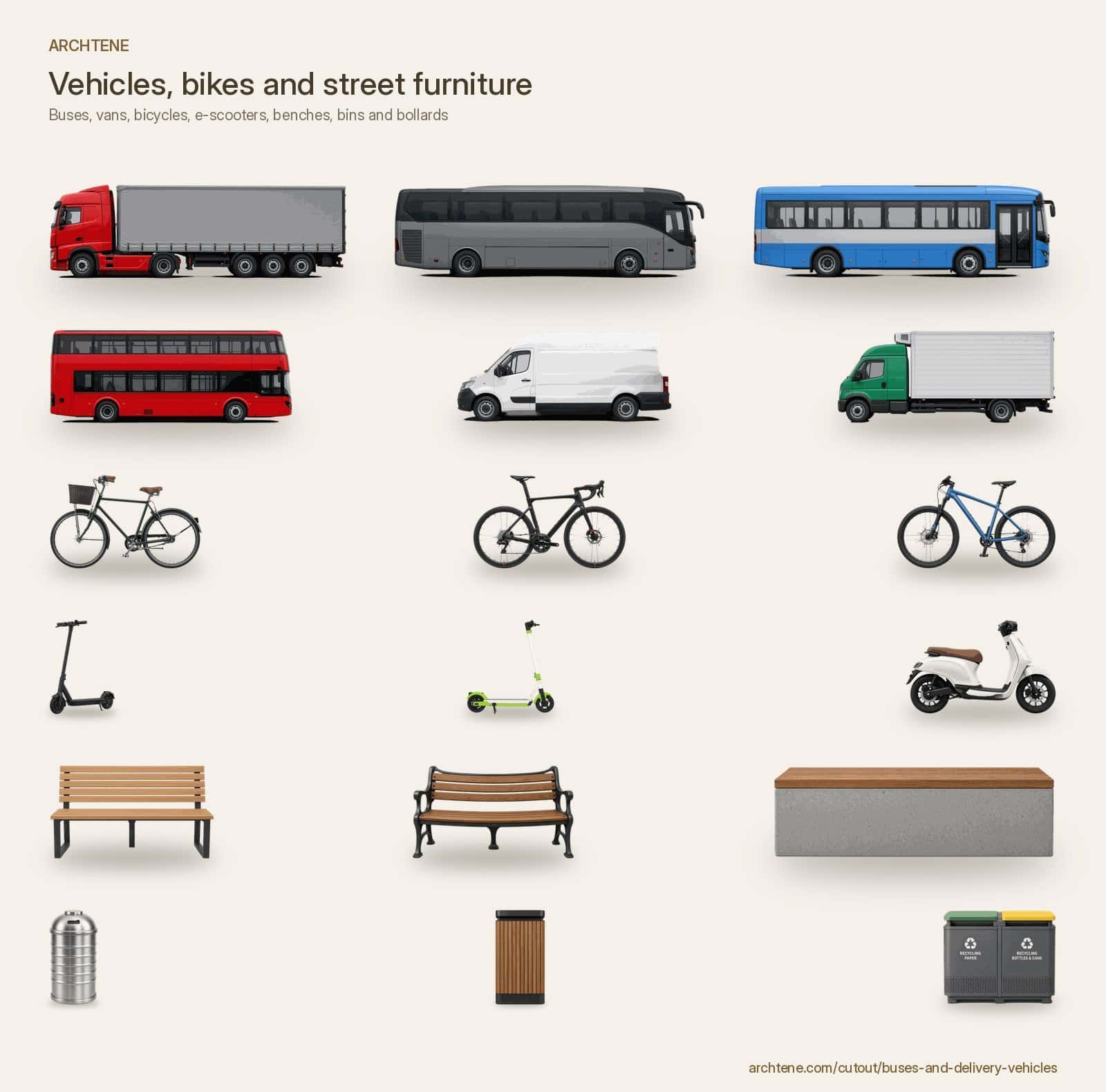
Vehicles follow the same rules as people, with one extra: their perspective is very obvious. A car shot side-on cannot sit in a two-point perspective street. Choose a vehicle photographed from a similar angle, and line its wheels up with your road vanishing point. Buses and delivery vehicles help show servicing for commercial projects, while bicycles and e-scooters suit active-transport streets and campuses. Keep supercars out of most renders; they draw the eye away from the building.
Step by step: adding cutouts to a render in Photoshop
- Export your render at full resolution, with a separate depth or material mask pass if your software allows.
- Mark the horizon line and light direction with guides.
- Add background figures first, then the midground, then the foreground.
- Scale each figure against a known dimension and the horizon line.
- Add contact and cast shadows on layers below each figure.
- Clip Curves and Colour Balance adjustments to each figure group.
- Add haze to distant figures and slight blur to match depth of field.
- Apply a final grade over everything and check the image at small size, as it will be seen on a board or screen.
For more on making cutouts look natural, see our earlier tips on using free PNG cutouts in architectural renders. And if you are building a full scene, pair your entourage with materials from the Archtene texture library and follow our guide to architectural textures in renders.
What are the most common cutout mistakes?
- Figures at different eye heights on flat ground.
- No contact shadow, so people float.
- Shadows that point a different way from the building shadows.
- Too many people, evenly spaced, all looking at the camera.
- Mixing photoreal and illustrated styles without meaning to.
- White halos around hair and leaves.
- Trees and people at the wrong season for the sky.
Frequently asked questions
Where can I download free architecture cutouts?
Free cutouts are available from figure collections, public domain archives and resource libraries. The Archtene cutout library offers free PNG packs of people, trees, vehicles and furniture, grouped so you can keep a consistent style across a project.
What file format should architecture cutouts be?
PNG with a transparent background is the standard, because it keeps soft edges such as hair and leaves. PSD files with masks are also useful when you want to edit the edge yourself.
How tall should a person be in an architectural render?
Scale an adult to about 1,700 mm against a known element such as a door. In an eye-level view, every standing adult on flat ground should have their eyes on the horizon line.
How do I stop cutouts looking fake?
Match scale, perspective, light direction and colour. Add a contact shadow under the feet, remove white edges and apply one colour grade over the whole image.
Can I use cutouts in Illustrator, InDesign or SketchUp?
Yes. Transparent PNGs can be placed in most design and modelling software. For diagrams and collages, silhouette or illustrated cutouts often read better than photoreal ones.
Should I use realistic or illustrated cutouts?
Use realistic cutouts for photoreal renders and illustrated or silhouette cutouts for collages, diagrams and conceptual boards. What matters most is staying consistent within one image.
Start building your entourage library
Good cutouts are an investment you will reuse in every project. Browse the free architectural cutouts on Archtene, save a small, consistent set of people, trees and vehicles, and use the steps above to make them belong in your next render.


Recent Posts
How to Use Textures in Architectural Renders: Where to Find Them and How to Apply Them
Free Architecture Cutouts: Where to Find Them and How to Use Them in Renders
Architectural Diagrams: 15 Styles and Examples for Your Next Presentation